The complete guide to the ScanHub platform — login and registration, creating and uploading scans, interpretation, review workflows, and group features.
USER LOGIN
Enter your valid username or email and password, then tap Login.


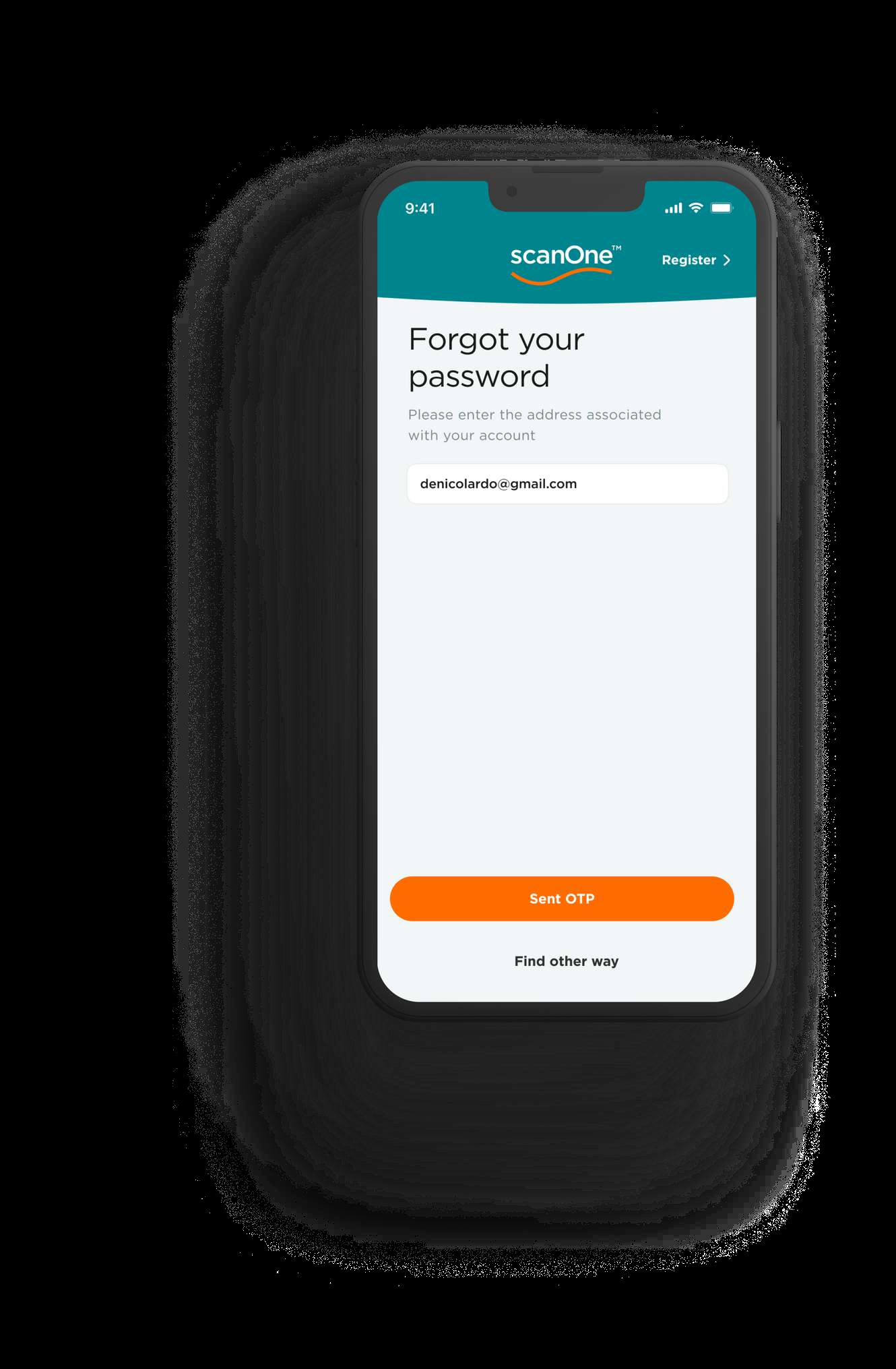
FORGOT YOUR PASSWORD?
If you forget your password, tap Forgot Password and enter your registered email address.
You’ll receive an OTP in your email. If you don’t see it, please check your spam folder.
On the OTP Verification screen, enter the OTP.
Once verified, you’ll be taken to the Reset Password screen where you can create a new password.

FOLLOW THIS SCREEN


NEW USER?
If you’re a new user, tap Register and enter your username, email, password, and promo code (if you have one).
Tap Sign Up to continue.
You’ll receive an OTP in your email to complete your registration.


CREATE A NEW SCAN

PURPOSE OF CREATING A NEW SCAN
Creating a new scan allows you to upload medical imaging files such as ultrasound, CT, or other scan types for documentation, review, learning, or remote consultation.
You can use this feature to:
1.Upload a patient’s scan for review, learning, or documentation.
2.Choose the source of your scan (Scan Vault, Camera, Gallery, or Video).
3.Categorize the scan under a specific study type (e.g., OB 1st Trimester, Gallbladder, Soft Tissue, Lung).
4.Track the review status (such as Pending Review) to monitor progress and feedback.


TAP ON CREATE SCAN
Tap + Create Scan to make a new scan

CHOOSE A STUDY TYPE
Tap on any of the options to upload a scan. You may select from ScanVault, Gallery, Camera and Video. Tap Next when done.


SELECT FINDINGS
Select the appropriate findings. You may also enter scan identifier and notes. These fields are optional.
When done, tap Next then Submit.
A Notification will show to track the progress of the upload.


PENDING SCANS
After submitting, the study will be tagged as pending. You will see all your pending scans at the Pending Scans tab.

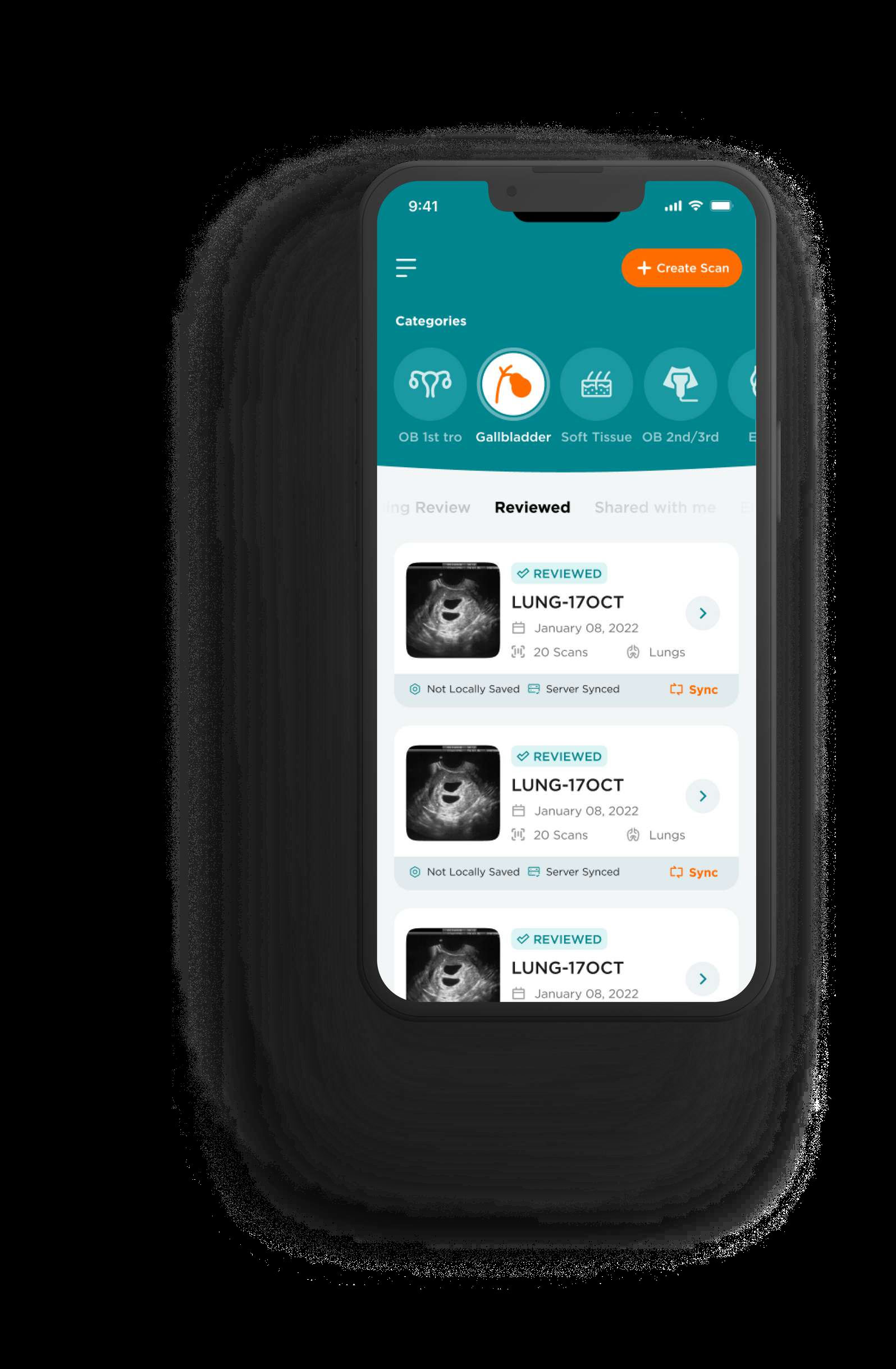
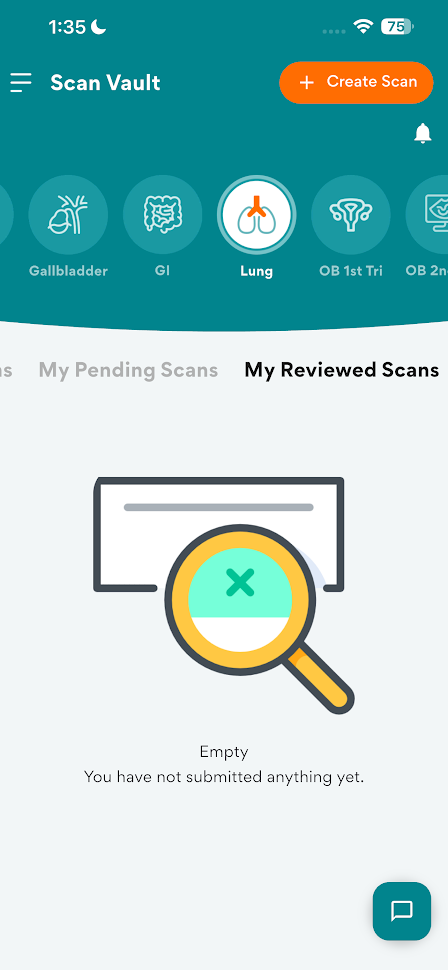
REVIEWED SCANS
This section shows scans that you’ve already reviewed.


SCAN VAULT
The old Scan Vault will be retired in the future, but your existing scans and studies will not be lost.
All previously uploaded scans will be migrated into the new Scan Vault.
You can access your older scans by clicking on the Old Scan Vault link (available on the ScanHub Web App only)


GROUP LEADER
1.Tap the hamburger icon ☰ to show the drawer menu.
2.Tap Incomplete Scans to show scans that needs your review. This menu is not available for Learner/Subscriber.
3.Tap Completed Scans to show scans that you already reviewed. This menu is not available for Learner/Subscriber.
MY COURSES
FIND MY COURSES
Tap the hamburger icon ☰ to show the drawer menu and Tap Courses.
SELECT AVAILABLE COURSES
You’ll see the courses and quizzes available to you. You can also review your answers and check whether they’re correct.

DASHBOARD

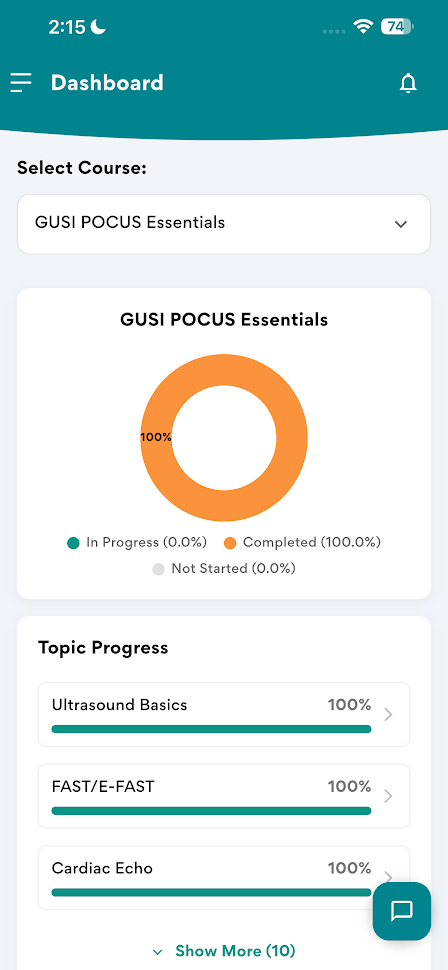
DASHBOARD
1.Tap the hamburger icon ☰ to show the drawer menu.
2.Tap Dashboard This screen will show you a summary of courses you’ve taken as well as the scans you’ve submitted and reviewed.
REFER A FRIEND
1.Tap the hamburger icon ☰ to show the drawer menu.
2.Tap Refer a friend From this screen, you can share your unique referral code with others.
If someone uses your code during registration, you’ll earn points that can be converted into rewards.

NOTIFICATIONS
1.Tap the hamburger icon ☰ to show the drawer menu.
2.Tap Notifications This is where you’ll receive updates such as news and announcements about the app.

FEEDBACK & SUGGESTIONS
1.Tap the hamburger icon ☰ to show the drawer menu.
2.Tap Feedback and Suggestions You can share your feedback, report issues, or suggest improvements.
You may also attach images and text to better explain your concern or idea.

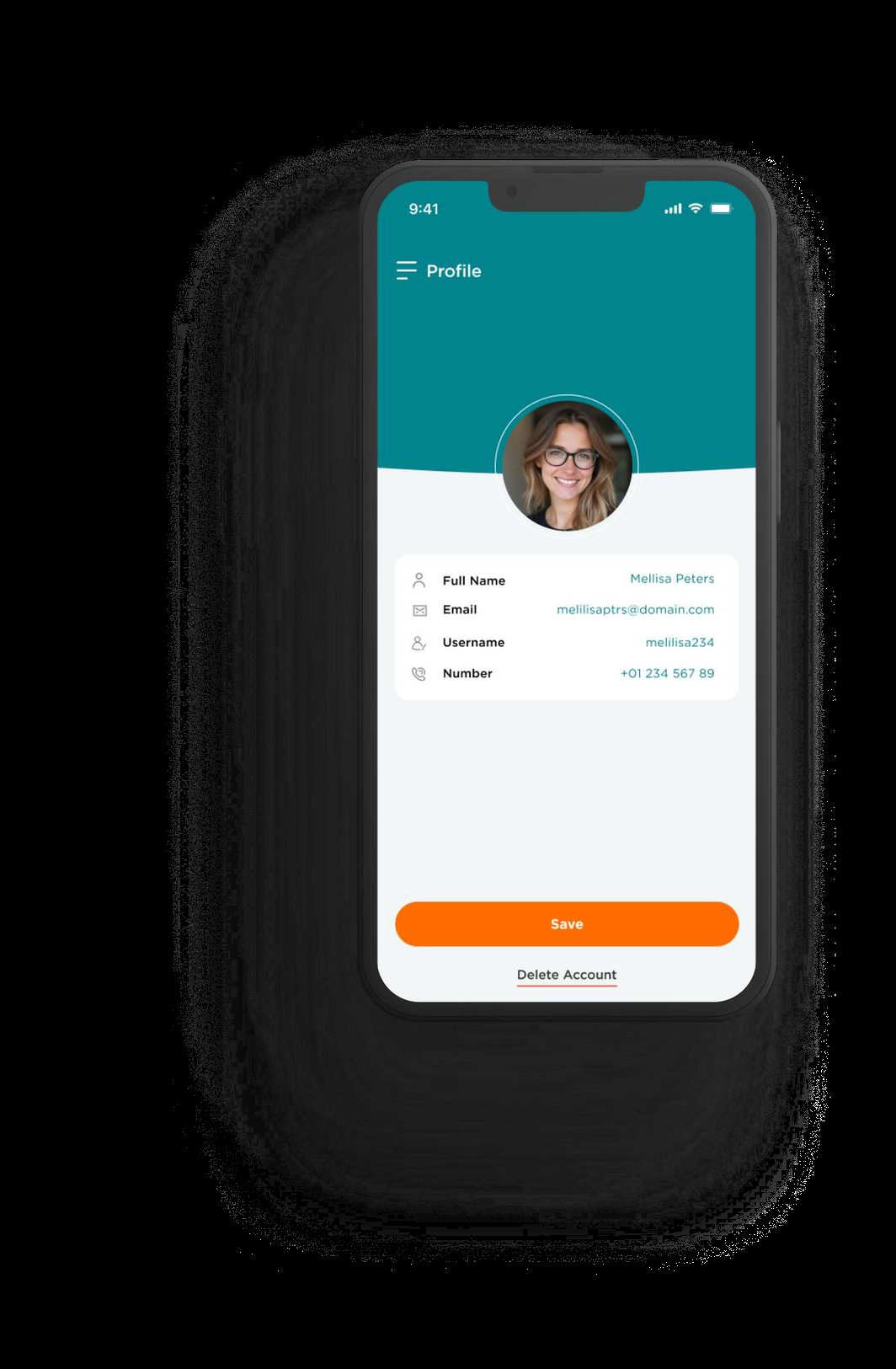
MY PROFILE
1.Tap the hamburger icon ☰ to show the drawer menu.
2.Tap Profile Here, you can:
View your profile details Update your first name, last name, and profile photo Change your password Delete your account

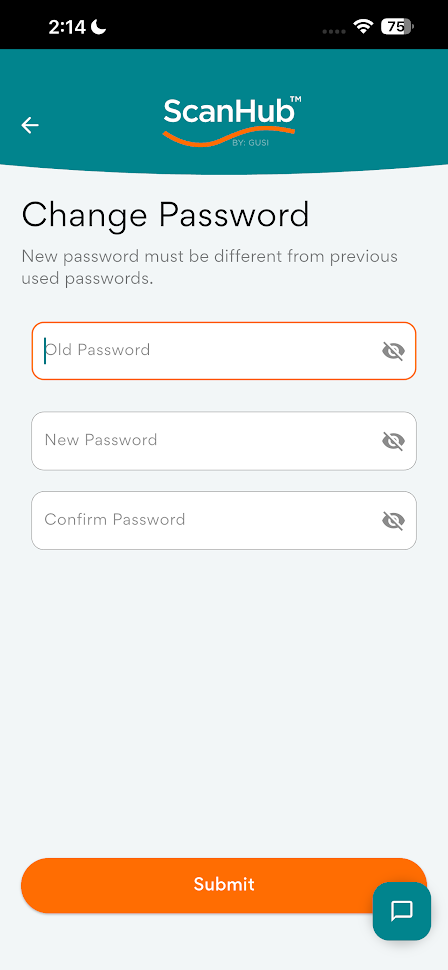
CHANGE PASSWORD
1.From the Profile screen, tap Edit Profile.
2.Select Change Password.
3.Enter your current password, new password, and confirm the new password.
4.Tap Submit to save your changes.

PATHOLOGY GALLERY
The Pathology Gallery is a curated collection of real ultrasound scans designed to help you identify, compare, and learn from various medical conditions across different body systems.

QUESTION BANK
The Question Bank is your go-to resource for quick, reliable answers to common ultrasound and ScanOne related questions.
Whether you’re troubleshooting a scan, reviewing protocols, or learning best practices, you’ll find expert-curated FAQs designed to support both beginners and experienced users.
The content is regularly updated so you always have the latest information.

SageAI
SAGE AI™ is your AI-powered assistant, providing instant, expert-validated ultrasound guidance exactly when you need it.
Whether you’re scanning in real time or reviewing images, SAGE AI™ helps you identify key structures, improve accuracy, and make confident decisions with every scan.

THANK YOU